Preview before sending
See exactly what your client will see, on every screen size, before you send.
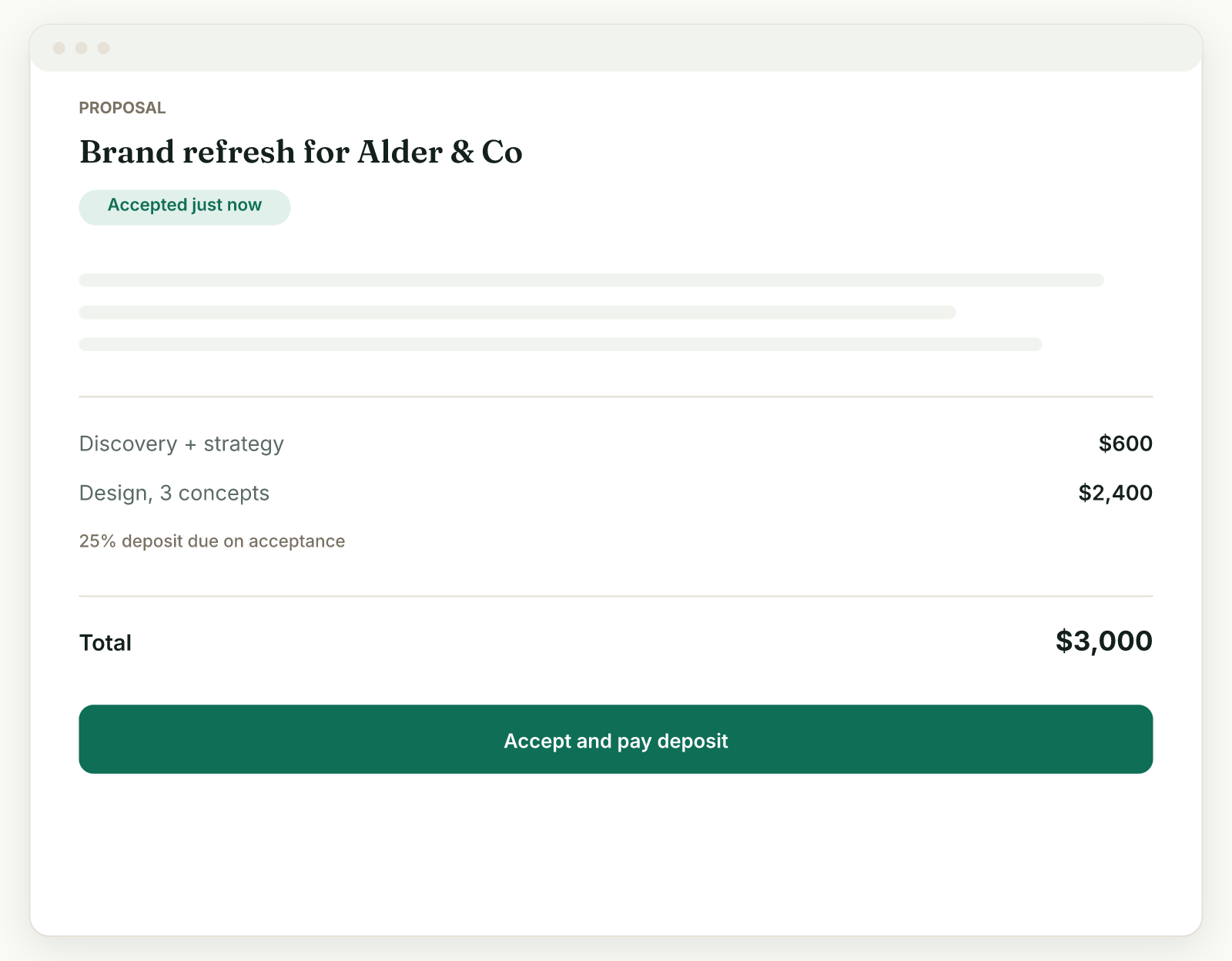
Always check the client view before you send: the branded design (hero, fonts, color) lives in the preview and the client page, not the editing form.
Preview from the form#
- On the New or Edit proposal screen, use the Edit / Preview toggle at the top.
- Preview opens full screen with Phone / Tablet / Desktop buttons and a portrait/landscape rotate, so you can check every screen size.
Preview a saved proposal#
A saved proposal also has a Preview button that opens the exact page your client will get.
If the proposal looks plain#
If it looks like a bare document or a PDF, you are probably looking at the edit form, not the preview. Flip the toggle at the top. If the preview itself looks unbranded, set your accent color and heading font in Settings, Brand (or the "Look and feel" panel inside the proposal); branding is account-wide and styles all your proposals.
Why it matters#
The preview is the real client page, not an approximation, so what you check is what they get: your brand, the pricing with any optional add-ons, the "Not included" box, and the accept button (or "Accept & pay" if you set a deposit).
Related
Ready to try it yourself?
Raoura is one flat plan at $17/month, with a 14-day free trial and no credit card required.
Start free trial